
Introduction
Is your laptop running slow or freezing when you try to open apps? Many people ask “Why is my laptop slow?” and the answer is often a mix of dust buildup, low storage, background apps, and overheating.
In this guide, I’ll show you exactly how to fix a slow laptop with 10 simple steps you can do yourself, plus a few tools that make the process easier.
Fix #1 — Clean the Dust From Your Laptop’s Fan (Most Common Fix)
If your laptop is running slow or suddenly feels hot, dust buildup inside the cooling fan is usually the main reason. When dust blocks airflow, your laptop overheats, slows down, and even freezes during basic tasks.
Cleaning the fan is one of the fastest and most effective ways to fix a slow laptop — and most people never realize how much dust is inside.
How Dust Slows Down Your Laptop
When your laptop overheats, it automatically lowers performance to avoid damage. This is called thermal throttling, and it can make even a fast laptop feel extremely slow.
Dust causes:
Higher fan noise
Overheating
Lag when opening apps
Freezing during multitasking
Random shutdowns
If your laptop gets hot during normal use, this fix almost always helps.
Tools You Need to Clean the Fan
You don’t need to take your entire laptop apart — just a few simple tools make the job safe and easy.
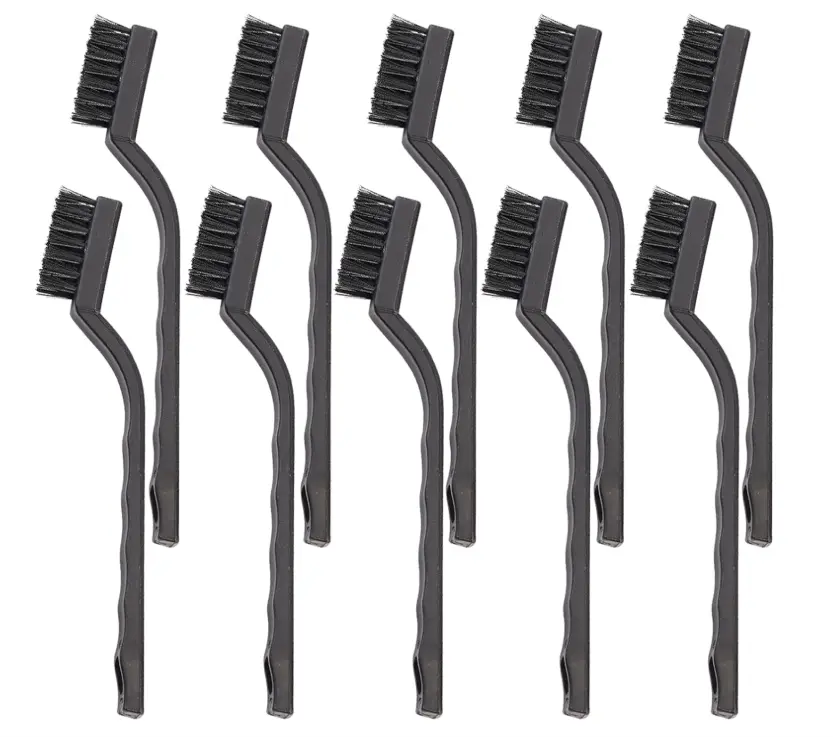
👉 Anti-static brush kit (safe for electronics)
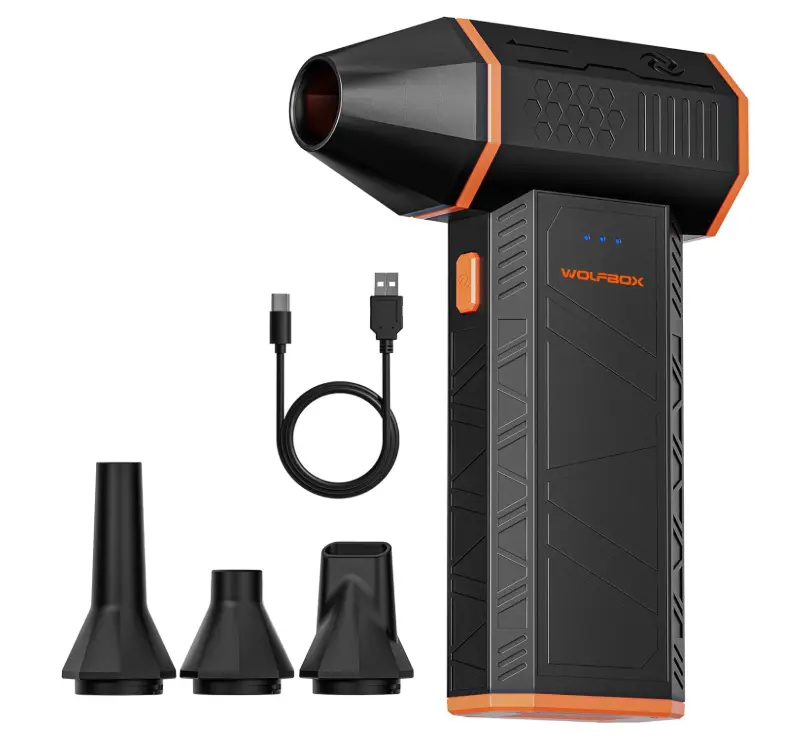
👉 Compressed air (for blowing out dust safely)
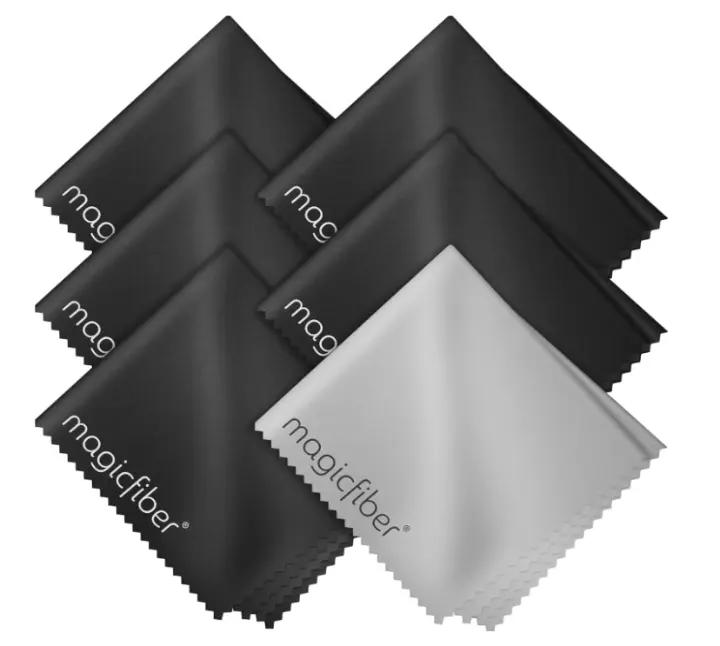
👉 Microfiber cloth (for cleaning vents)
These are low-cost tools and extremely useful for any laptop owner.
How to Clean Your Laptop’s Fan (Beginner-Friendly)
Follow these simple steps:
1. Turn off the laptop completely
Don’t do this while it’s on.
2. Unplug the charger
Prevents damage or accidental startups.
3. Locate the air vents
Usually on the bottom or sides of the laptop.
4. Spray compressed air into the vents
Use short, controlled bursts — don’t hold it continuously.
5. Use a brush to loosen stubborn dust
Never use metal brushes. Only soft, anti-static ones.
6. Wipe down the vents
Use a microfiber cloth to remove any remaining dust.
This entire process takes less than 2 minutes and can instantly improve performance and temperature.
When You Should Bring It In for Professional Cleaning
If your laptop still overheats or stays loud after cleaning the vents, the internal fan may need a deep internal cleaning, where we open the laptop and remove the dust from the motherboard and heat sink.
This is something we offer at Tech Revival Labs for customers who want a full cleaning and performance boost.
Fix #2 — Close Background Apps You Don’t Need
One of the most common reasons a laptop is running slow is because too many apps are open in the background. Even if you aren’t using them, apps like Chrome, Discord, Spotify, Steam, Zoom, and Microsoft Teams can eat up your RAM and CPU, making everything lag.
Closing unnecessary programs can instantly speed up your laptop.
How Background Apps Slow Down Your Laptop
When too many apps run at the same time, they use up your:
RAM (memory)
CPU (processing power)
GPU (graphics)
Battery life
This leads to:
Freezing
Slow startup times
Lag when switching tabs
Chrome crashing
Apps taking forever to open
If your laptop has only 4GB or 8GB of RAM, background apps can slow it down a lot.
How to Close Background Apps on Windows
1. Press CTRL + SHIFT + ESC
This opens Task Manager.
2. Click on “Processes”
You’ll see every app running.
3. Sort by “Memory” or “CPU”
This shows which apps are slowing your laptop.
4. Select a heavy app you’re not using
Examples: Chrome, Steam, Spotify, Discord.
5. Click “End Task”
Your laptop should instantly speed up.
How to Close Background Apps on MacBook
1. Press Command + Space
Search “Activity Monitor.”
2. Click “Memory” or “CPU” tab
Find the apps using the most resources.
3. Select the app
And click the X button at the top.
4. Confirm “Force Quit”
Your Mac should feel smoother immediately.
Fix #3 — Free Up Storage Space (A Full Drive Slows Everything Down)
If your laptop is running slow, one of the biggest reasons is low storage space.
When your SSD or hard drive gets too full, your laptop can’t create temporary files, can’t update properly, and starts slowing down a LOT.
Most laptops need at least 15–25% free space to run smoothly.
Why Low Storage Makes Your Laptop Slow
When your storage is almost full, your laptop struggles to:
Install updates
Load apps
Cache files
Run background tasks
Handle large files
Open multiple browser tabs
This causes:
Freezing
Slow startup
Apps crashing
Chrome lag
Random slowdowns
If your drive is 90–100% full, your laptop will ALWAYS feel slow.
How to Check Your Storage (Windows)
1. Press Windows Key → Type “Storage Settings.”
2. Click “Storage.”
You’ll see how much space you have left.
If the bar is red or close to full → this is your problem.
How to Check Your Storage (MacBook)
1. Click the Apple logo → “About This Mac.”
2. Go to “Storage.”
You’ll see what’s taking up the space.
MacBooks especially slow down when storage is nearly full.
How to Free Up Space Fast
Use these easy methods:
1. Delete old downloads
People forget these pile up over time.
2. Empty the recycle bin
Deleting isn’t enough — you must empty it.
3. Remove old apps you don’t use
Games and editing apps take a LOT of space.
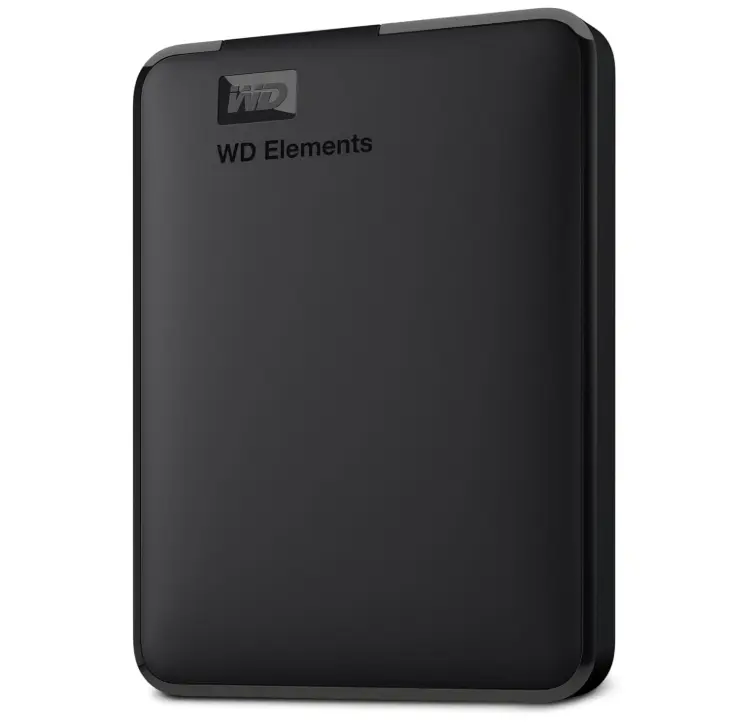
4. Move photos & videos to an external drive
Videos take gigabytes of storage.
👉 Recommended external hard drive:
WD 1TB Elements Portable External Hard Drive
5. Clear browser cache
Chrome can use 5–20GB of space by itself.
Upgrade to a Larger SSD (Fastest Way to Speed Up a Laptop)
If your storage is small (128GB / 256GB), upgrading to a bigger SSD will make your laptop MUCH faster.
It improves:
App loading
Windows startup
Multitasking
File transfers
👉 Recommended SSD for upgrades (Amazon):
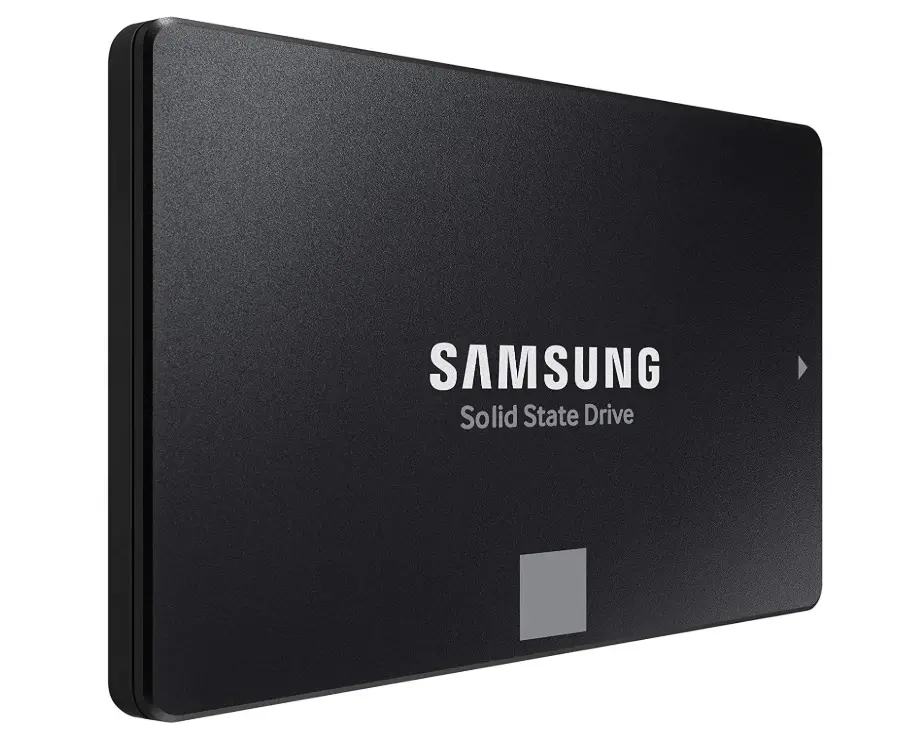
This is one of the best performance boosters for older laptops.
Fix #4 — Disable Startup Programs (Huge Speed Boost)
If your laptop takes forever to start up or feels slow right after turning it on, the problem is usually too many startup programs running in the background.
Apps like Steam, Discord, Spotify, Zoom, Adobe, and even printer software can automatically start every time you boot your laptop — slowing everything down before you even begin using it.
Disabling unnecessary startup apps can make your laptop feel twice as fast in just a few minutes.
Why Startup Programs Slow Down Your Laptop
Startup apps increase:
Boot time
CPU usage
RAM usage
Background processes
Fan noise
This leads to:
Slow login
Lag immediately after startup
Apps freezing for the first few minutes
High CPU spikes
If your laptop is slow right after turning it on, this step is a MUST.
How to Disable Startup Apps on Windows
1. Press CTRL + SHIFT + ESC
This opens Task Manager.
2. Click the “Startup” tab
You’ll see every app that launches at startup.
3. Look for apps labeled “High Impact”
These slow your laptop the most.
4. Right-click → Disable
Do this for apps you don’t need automatically.
Safe to disable:
Spotify
Steam
Discord
Adobe apps
Zoom
Printer apps
Xbox services
Game launchers
Your laptop should reboot MUCH faster.
How to Disable Startup Apps on MacBook
1. Click the Apple logo → System Settings
2. Go to “General” → “Login Items”
3. Select apps you don’t need at startup
4. Click “Remove”
MacBooks often have hidden startup apps that cause slow boot times. Removing them gives an instant speed boost.
Bonus Tip — Use an SSD for Even Faster Boot Times
If your laptop still starts slowly even after disabling startup apps, the real bottleneck might be your hard drive.
Upgrading to an SSD can make your laptop boot in 5–10 seconds.
👉 Recommended SSD from Amazon:
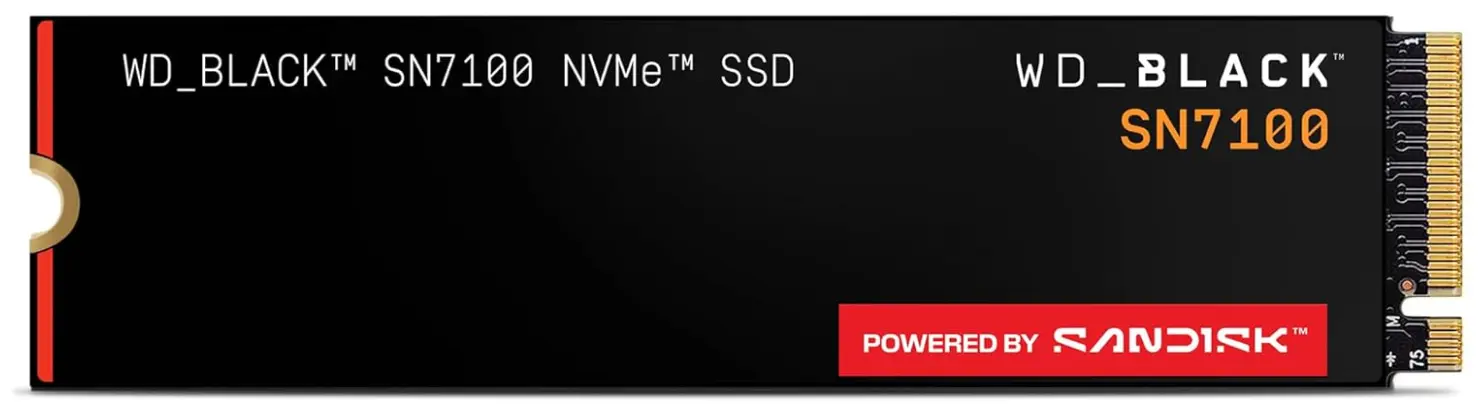
This upgrade makes older laptops feel brand-new.
Stop Your Laptop From Overheating (Major Cause of Slow Performance)
Overheating is one of the biggest reasons a laptop becomes slow.
When your laptop gets too hot, the processor automatically slows down to protect itself — this is called thermal throttling, and it makes your laptop feel laggy even during simple tasks.
Keeping your laptop cool is one of the easiest ways to speed it up immediately.
Signs Your Laptop Is Overheating
You might notice:
The fan running loudly
The bottom of the laptop feeling very hot
Apps lagging or freezing
Slow performance after 10–20 minutes
Random shutdowns or restarts
If you see these signs, overheating is definitely part of the problem.
How to Fix Laptop Overheating
1. Use a Cooling Pad (Instant temperature drop)
Cooling pads help move air under the laptop, reducing heat and improving performance.
👉 Recommended cooling pad (Amazon):
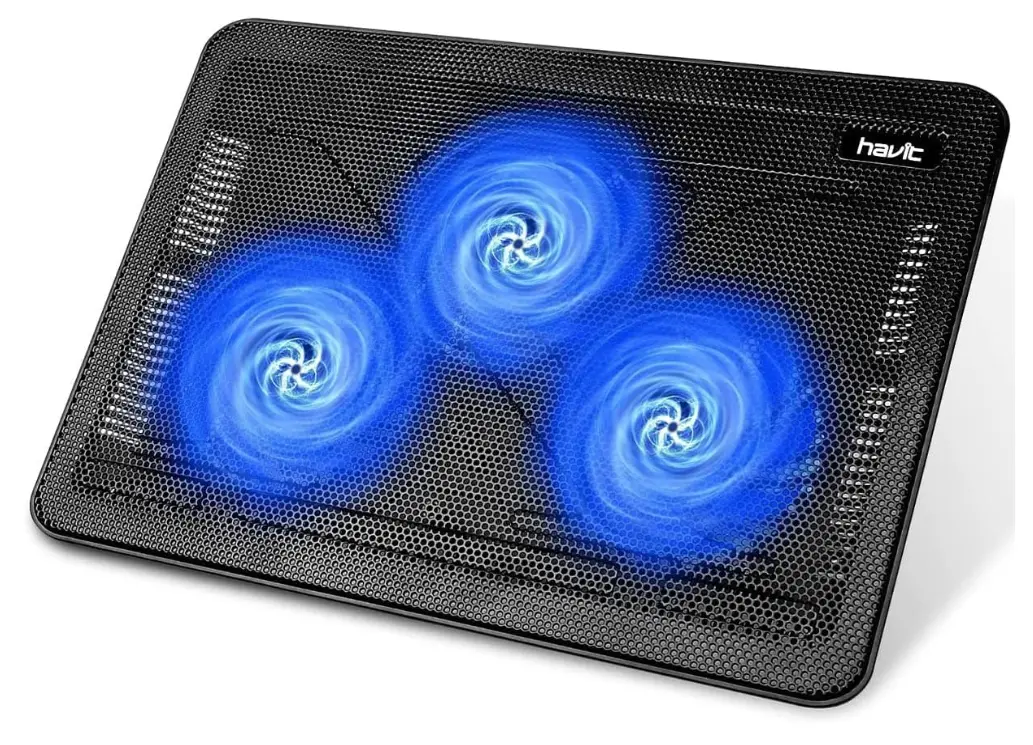
This works incredibly well for gaming laptops, HP, Dell, Acer, Lenovo, and older MacBooks.
2. Don’t Use Your Laptop on a Bed or Blanket
Soft surfaces block the vents, trapping heat.
Use your laptop on a hard surface like:
A desk
A tray
A cooling pad
A laptop stand
3. Replace Thermal Paste (Advanced but very effective)
Old laptops often have dry, cracked thermal paste, which stops the CPU from cooling properly.
👉 High-quality thermal paste (Amazon):
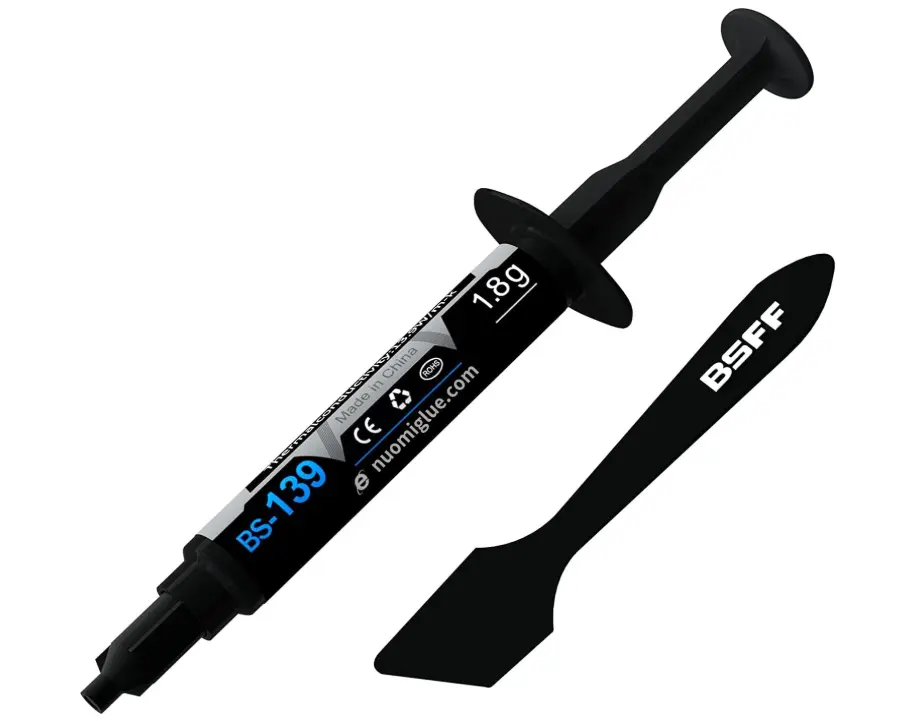
This fix offers one of the biggest temperature drops for older laptops.
(If you're not comfortable doing this, you can offer this as a service through Tech Revival Labs.)
4. Keep Background Apps Closed
Overheating gets worse when too many apps run at once (Chrome + Steam + Discord + Zoom).
Combine this with Fix #2 for even better results.
Conclusion
A slow laptop can be frustrating, but in most cases, the fixes are simple. By cleaning the fan, closing background apps, freeing up storage, disabling startup programs, and reducing overheating, you can speed up your laptop without spending a lot of money. These steps work for both Windows laptops and MacBooks and are the same techniques we use every day at Tech Revival Labs.
If your laptop is still running slow after trying these steps, the issue may be deeper—such as a failing hard drive, worn-out thermal paste, or hardware damage. In that case, feel free to reach out to us for a full diagnostic and professional repair.
We’re always here to help keep your devices fast, clean, and running like new.